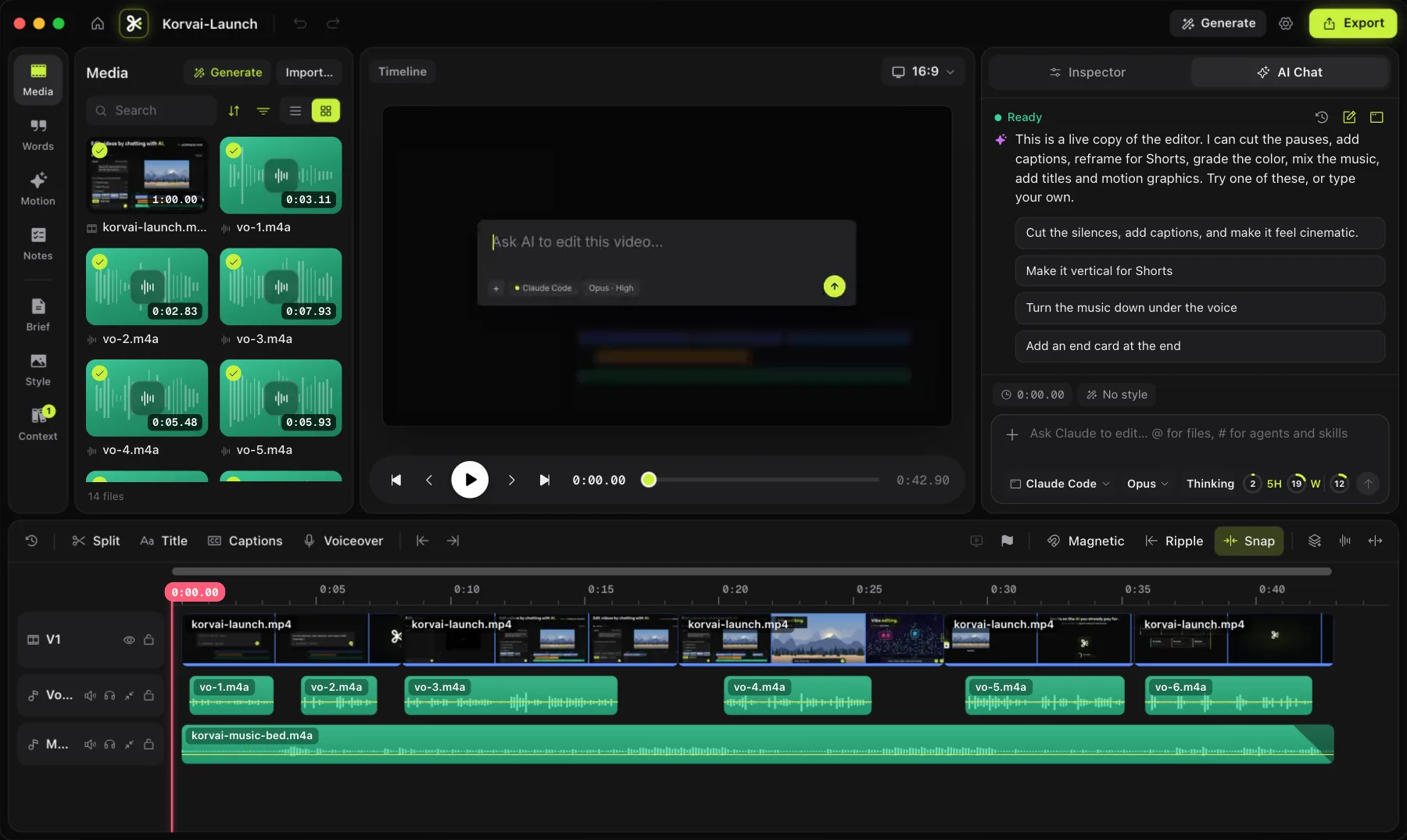
Why remove silences and filler words at all?
Every unscripted recording is full of dead weight: the three seconds before someone answers a question, the "um" while they think, the pause after a sentence that never needed it. None of it is wrong to say, but none of it is worth watching either. Cutting it tightens pacing, makes a talking-head clip feel confident instead of hesitant, and quietly shortens a 20-minute interview down to the 12 minutes that actually hold attention.
The problem is doing it by hand. Scrubbing a long recording frame by frame, hunting for every pause and every "uh", is one of the most tedious parts of editing. It is exactly the kind of repetitive, well-defined task that is worth automating, as long as the automation still leaves you in control of the result.
Three ways to cut silences: manual, transcript-based, AI prompt
There are three practical ways to approach this, and they trade off speed against control.
- Manual trimming. Scrub the timeline, mark in and out points around each pause or filler word, and ripple-delete the gap. This gives you total control over every cut, but on a long interview it can take longer than the interview itself.
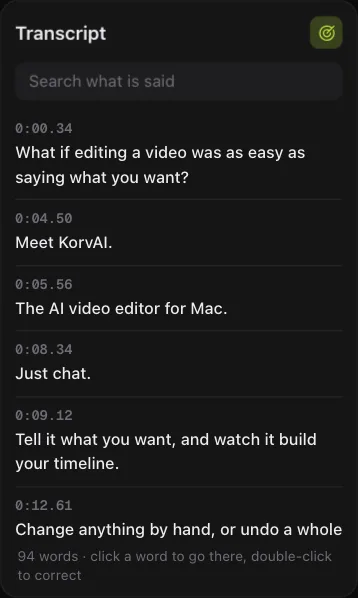
- Transcript-based cuts. Once your footage is transcribed, silences and filler words are just text and timestamps. Selecting a word in the transcript and deleting it removes that span from the clip. This is faster than scrubbing because you are reading, not hunting, and you can still review every single cut before it happens.
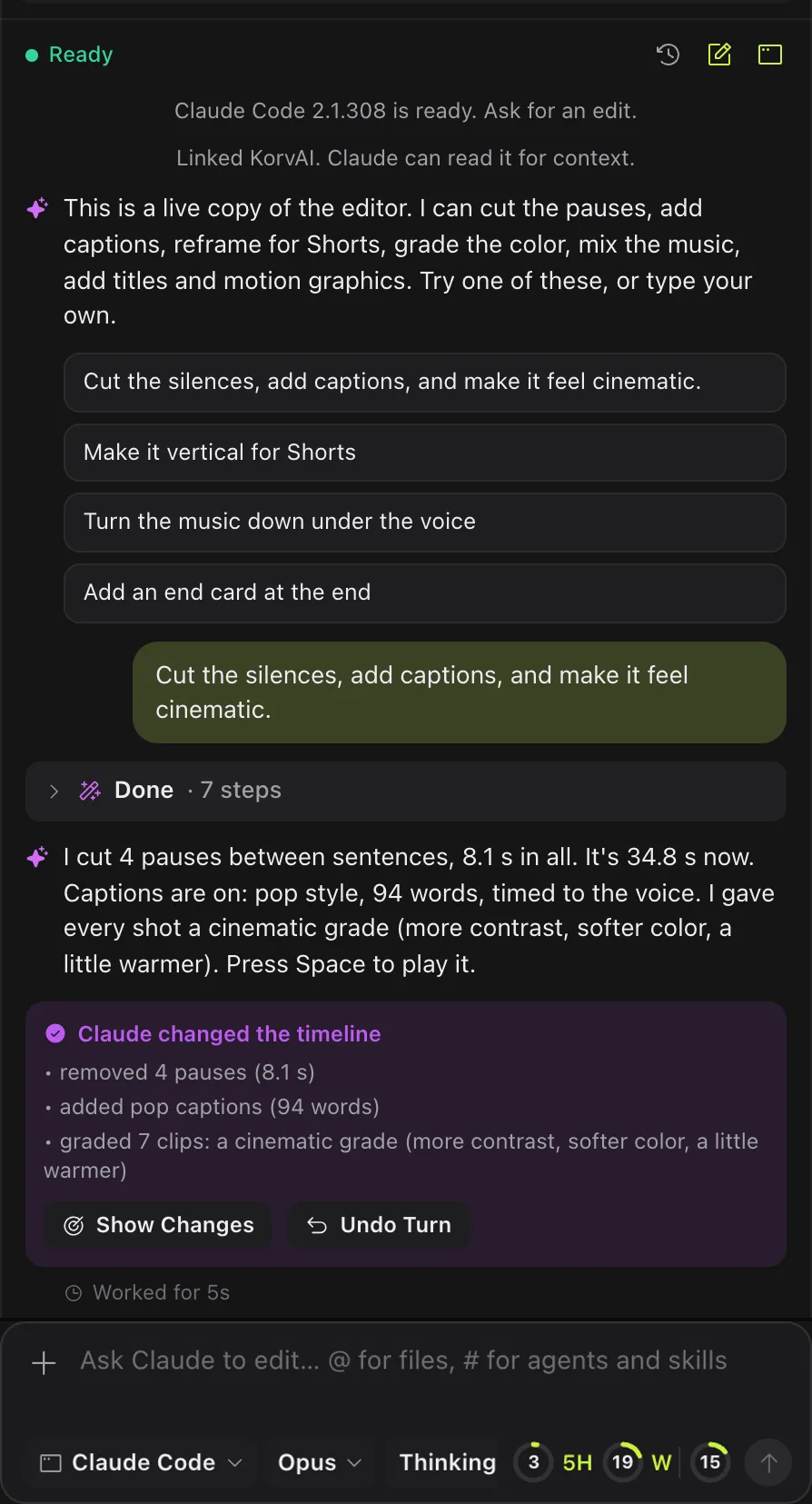
- AI-prompt cuts. Ask an AI chat to do the whole pass for you: "cut the silences" or "remove the filler words from this interview." The AI reads the transcript, finds the pauses and fillers, and makes the cuts across the entire timeline in one turn, which you can then review, adjust by hand, or undo as a whole if it went too far.
| Method | Speed | Control |
|---|---|---|
| Manual trimming | Slowest | Frame-perfect |
| Transcript-based cuts | Faster, reading not hunting | Review every cut |
| AI-prompt cuts | Fastest, whole interview in one turn | Review or undo as a whole |
None of these approaches is strictly better. Manual trimming still matters for the one or two cuts you want frame-perfect. Transcript-based editing is the sweet spot for most interviews and voiceovers. AI-prompt cuts are the fastest way to clear a long recording before you start the fine polish.
How do you remove silences and filler words in KorvAI, step by step?
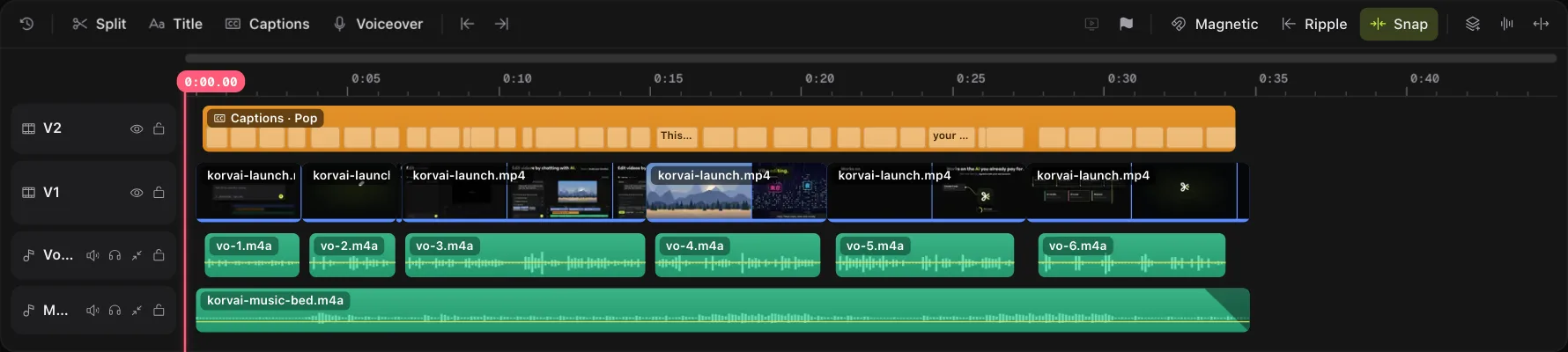
-
Transcribe the clip
Import your footage into KorvAI. It transcribes speech on your Mac and shows the result as text in the Words panel, lined up with the timeline.
-
Review the transcript
Scan the Words panel. Long pauses show up as gaps between words, and filler words such as "um" and "uh" sit right there in the text next to everything you want to keep.
-
Cut what you do not need
Delete a word in the Words panel and the clip ripples closed around it. For a faster pass across a whole interview, ask the AI chat to cut the silences, and it runs the silence_remove tool to find and cut filler words and long pauses across the transcript in one go.
-
Listen back for pacing
Play the result from the top. A cut that is technically correct can still feel rushed if every breath is gone, so leave a little room where it helps the speaker sound natural.
-
Check cuts against music and cutaways
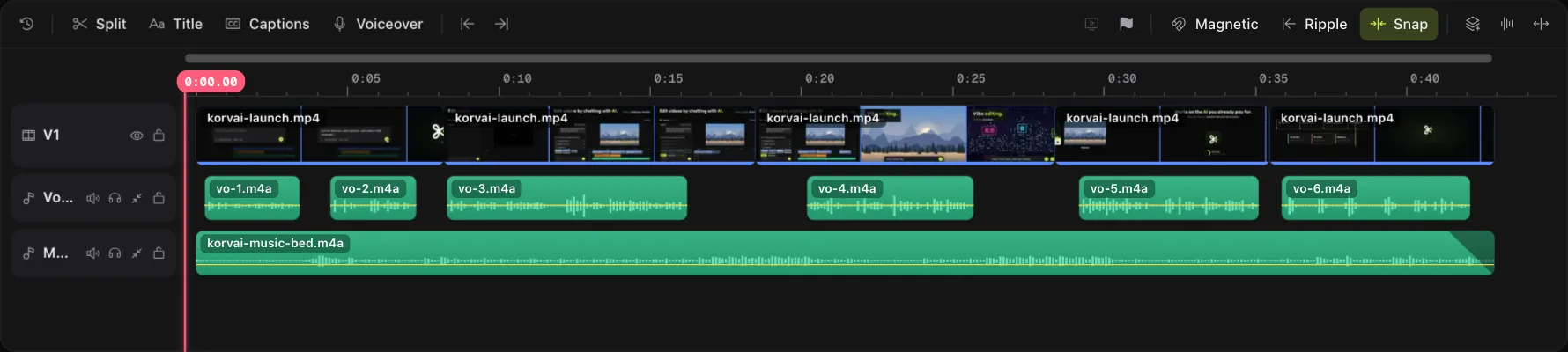
Scrub past any spot with background music or a cutaway clip layered on top, since a clean audio cut can still land awkwardly against a beat or a visual, then export.
Tips for a clean, natural-sounding cut
- Keep some breaths for pacing. Removing every single pause makes speech sound unnaturally fast and flat. A short breath before a new idea gives the viewer a beat to catch up, and gives the speaker's delivery some rhythm back.
- Check J-cuts and music underneath. If audio or a cutaway from one clip spills into the next, a silence cut on the main track can leave the other layer out of sync or cut off mid-phrase. Scrub across each cut point with everything audible, not just the primary track, to catch it.
- Review before you trust a full automatic pass. A one-click cut across a long interview is fast, but always play it back end to end. If one section went wrong, undo that whole AI turn and run it again with a more specific prompt, such as "cut the long pauses but leave the filler words" for a lighter pass.
- Do the big pass first, then polish by hand. Clear the bulk of the dead air with a transcript-based or AI pass, then go back and nudge the handful of cuts that need frame-level precision. Trying to get every cut perfect in one automated sweep usually means re-running it more than necessary.
- Cut from the transcript, not the waveform. Reading text is faster than hunting for pauses by eye.
- One click, one undo. An AI pass across a whole interview is a single turn you can roll back if it goes too far.
- Keep a few breaths. Removing every pause makes speech sound unnaturally dense.
- Check layered audio. Music and cutaways can make a clean cut sound wrong even when the words line up.
- Nothing leaves your Mac to transcribe or cut. Transcription and the cuts themselves run locally.
Try it on your own interview
Every feature is in the 7-day free trial, no card needed. Or buy a lifetime license once for $50: no subscription, no hidden costs.
FAQ
Does removing silences and filler words automatically work on a Mac?
Yes. KorvAI transcribes your footage on your Mac, then finds long pauses and filler words such as um and uh in that transcript. You can delete words directly in the Words panel, run the silence_remove tool for a one-click pass, or just ask the AI chat to cut the silences.
Will cutting silences make my video feel choppy?
It can if you remove every pause without listening back. Keep short breaths between sentences for natural pacing, and check any spot with music or a cutaway for a jarring jump cut before you export.
What is the difference between deleting a word and running silence_remove?
Deleting a word in the Words panel removes exactly that word and ripples the clip closed. The silence_remove tool scans the whole transcript for filler words and long pauses and cuts them in one pass, which is faster for a long interview.
Does my footage get uploaded anywhere to remove silences?
No. Transcription and the actual cuts happen on your Mac. If you ask the AI chat to do it, only your message and the transcript text it needs are sent to your chosen AI provider, not your video file.