How does on-device transcription work?
KorvAI downloads a speech model once, in the background, the first time you launch it, and transcription runs locally from then on. You do not need an internet connection for captions after that initial download, and captions can usually start appearing before the download even finishes, since the app begins transcribing as soon as enough of the model is ready.
Because transcription happens on your Mac, your audio is not uploaded anywhere to generate captions. The transcript becomes the backbone for captions, subtitle export and the filler-word and silence cutting tools, so you only transcribe once per project and every caption-related feature reads from the same timed text.
How do you add word-by-word captions, step by step?
-
Let the speech model finish its first download
On first launch, KorvAI starts downloading its speech model in the background. You can keep working; captions can begin before the download completes.
-
Transcribe your footage
Import your clips and let KorvAI transcribe the audio. The transcript becomes the timing source for every caption that follows.
-
Pick a caption preset
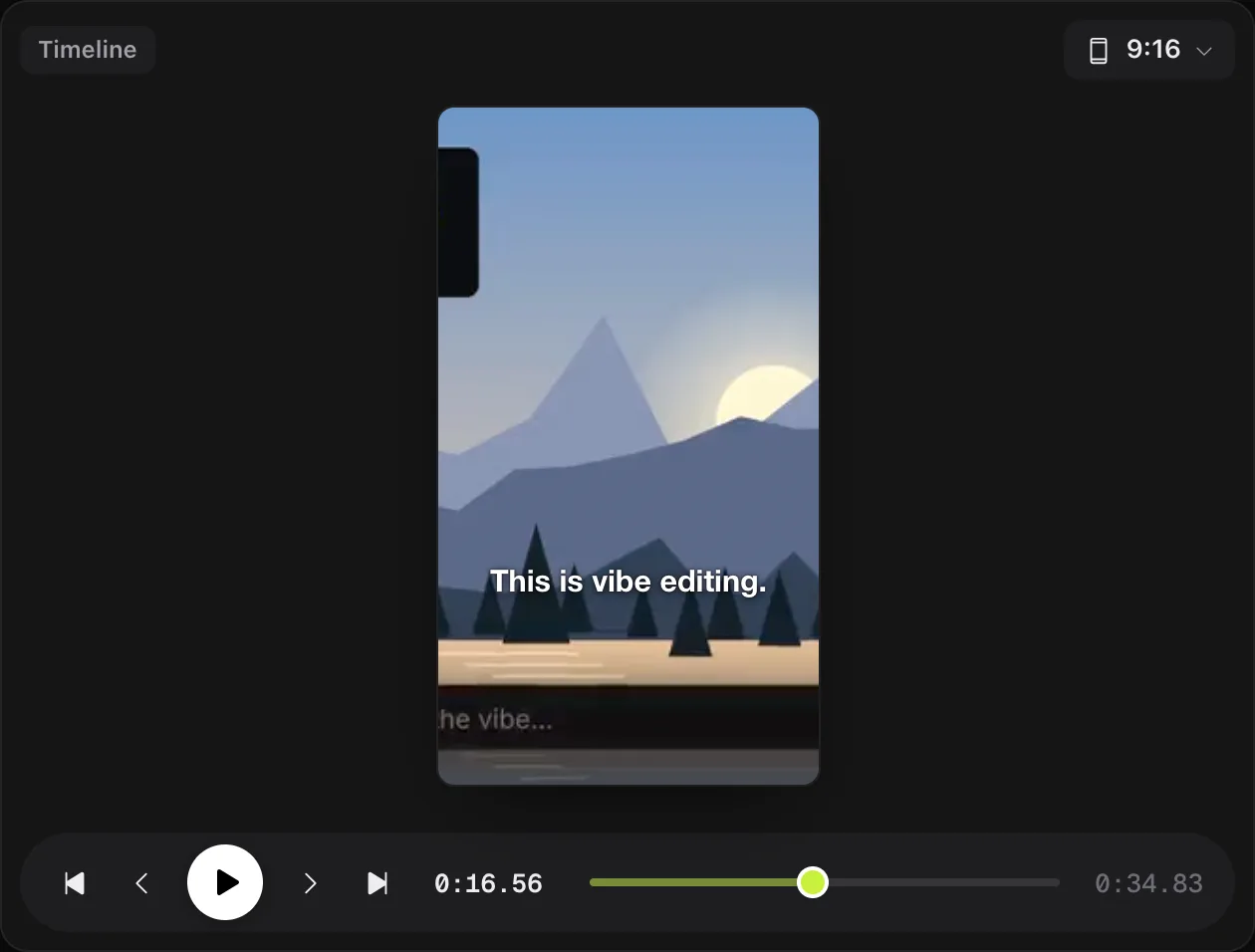
Choose Pop, Box, Minimal or Bold. Apply it to the whole project for a consistent look, or to a single clip if you want variety across a longer edit.
-
Check captions against the picture
Play back the result. Word-by-word captions should highlight in time with speech and avoid covering faces or on-screen text; move the caption position if they do not.
-
Fine-tune wording and export
Open the subtitle editor to merge short lines or fix a misheard word, then export an SRT file alongside your video if you need captions as a separate file.
What do the four caption presets look like?
KorvAI ships four built-in caption presets, each suited to a different kind of video:
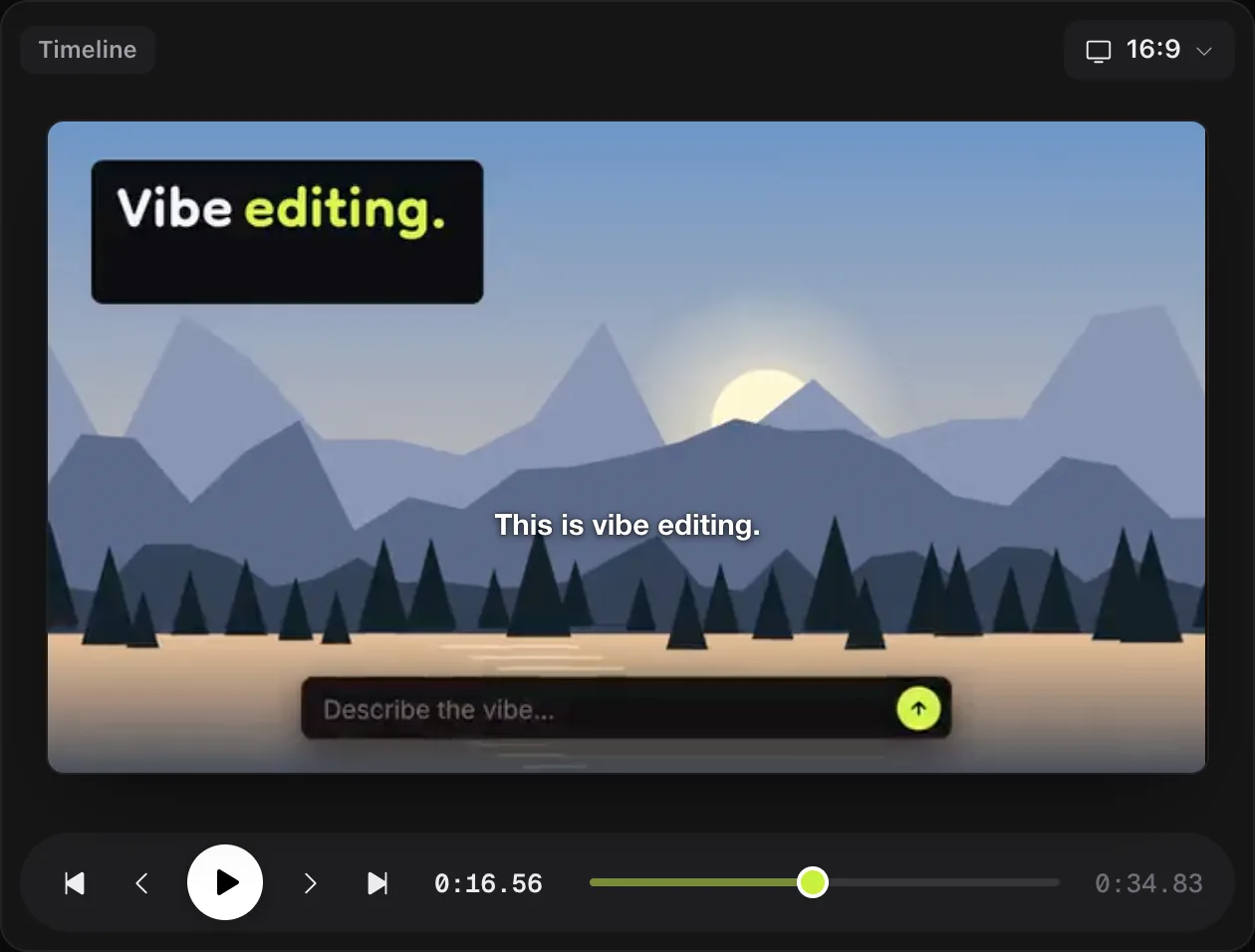
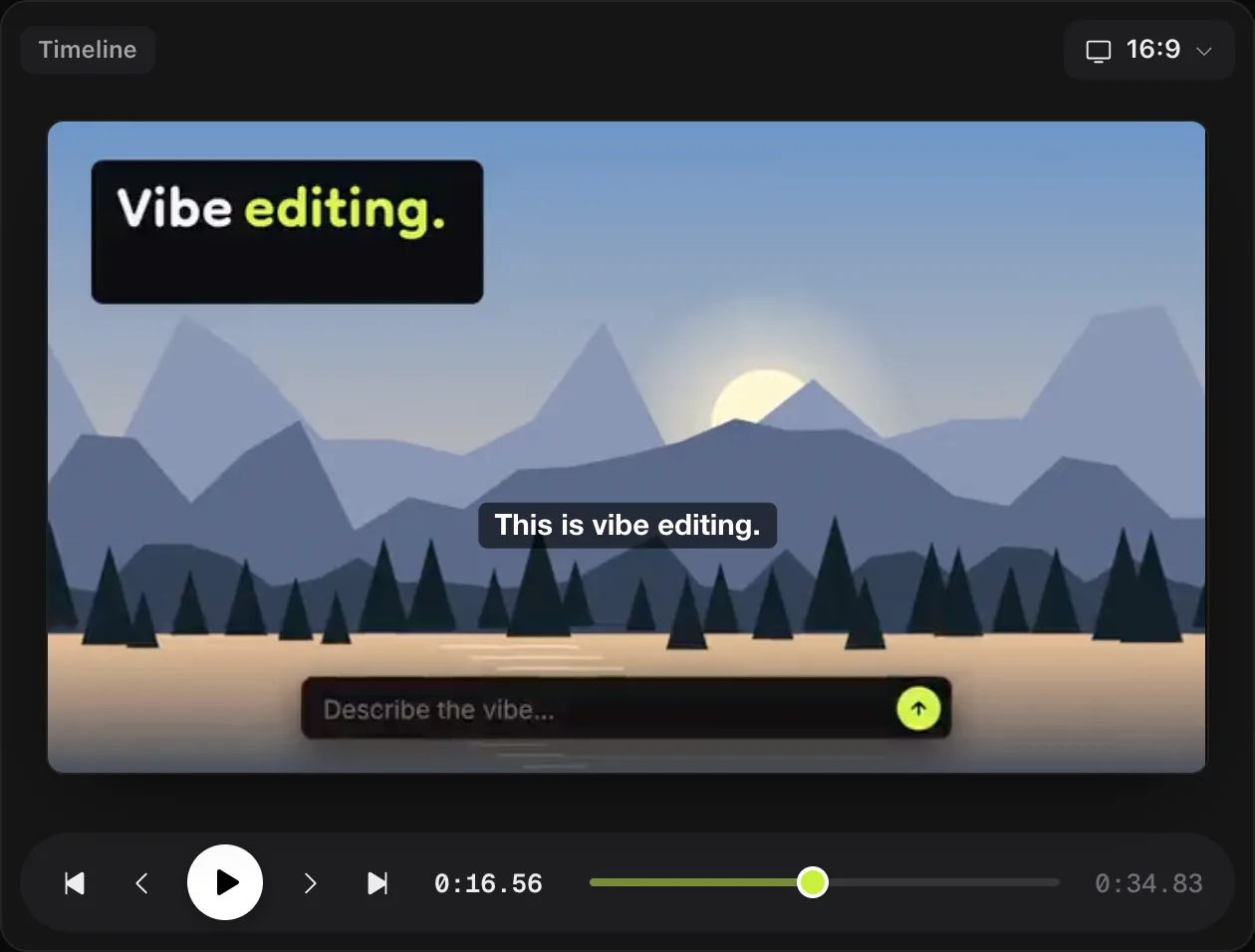
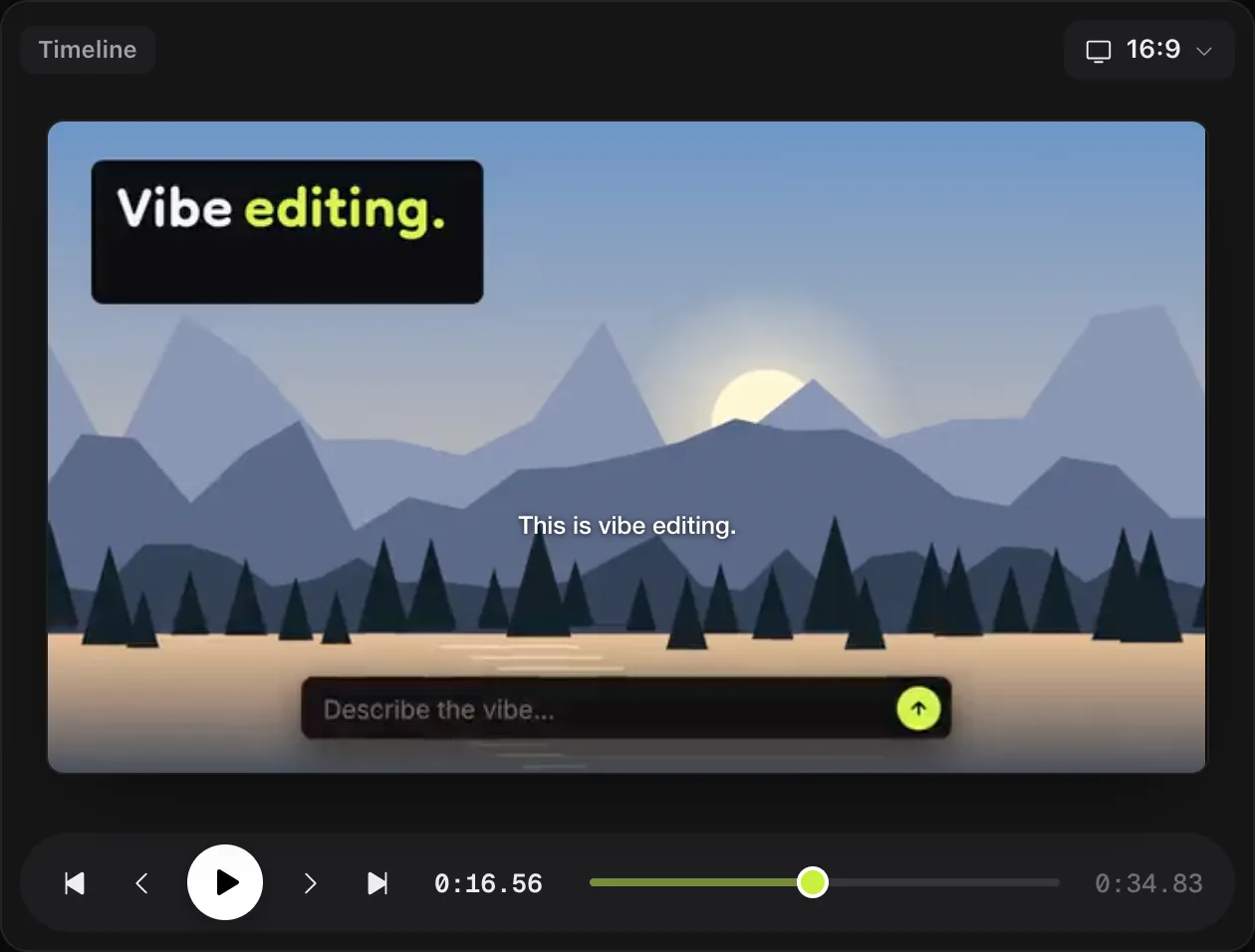
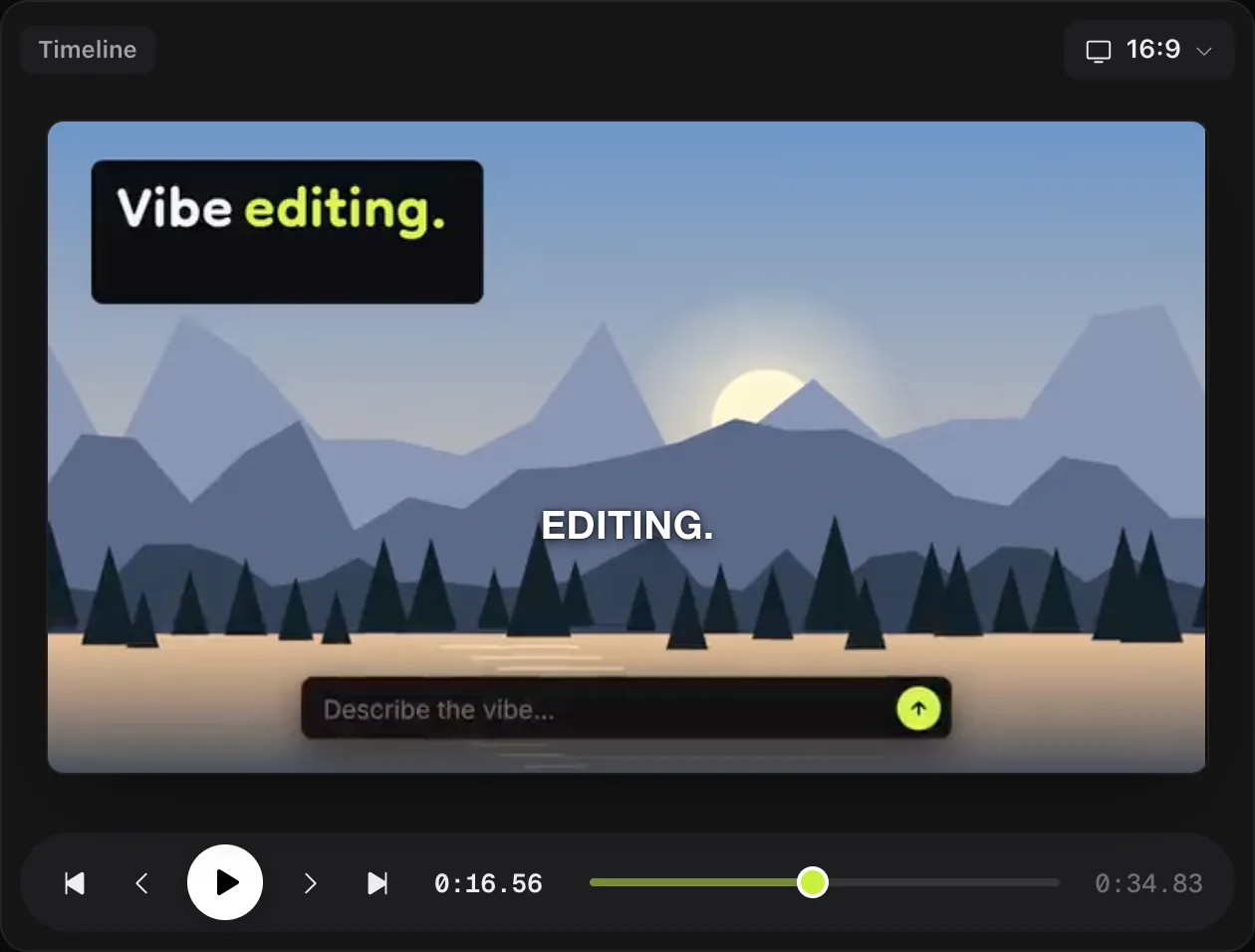
| Preset | Feel | Good for |
|---|---|---|
| Pop | Punchy, animated word highlights | Shorts, Reels, high-energy cuts |
| Box | Solid background box behind text | Busy backgrounds, product demos, screen recordings |
| Minimal | Clean text, little decoration | Cinematic or talking-head footage where captions should stay quiet |
| Bold | Large, heavy weight text | Fast-paced social clips that need captions readable at a glance |
You can switch presets at any point; since captions are generated from the transcript rather than baked into the footage, changing the style does not require retranscribing.
Do captions stay in sync when you edit?
Yes. Captions are tied to the transcript timing underneath each clip, not to a fixed timecode, so when you split, trim, move or delete part of a clip, the captions attached to it follow along automatically. This is what makes it practical to caption a video before you finish cutting it: you do not have to redo captions every time you change the edit.
If you hand-edit a caption's wording and later want it to match the transcript exactly again, a "Follow Speech Again" option drops your manual changes and resyncs that line to the transcript.
How do you fix wording and export SRT?
KorvAI's subtitle editor lets you merge short caption lines into longer ones, correct a word the speech model misheard, and review every line before export. When you are happy with the result, export the captions as a standard SRT file, which you can hand off separately from the rendered video, for example to a platform that burns in or displays its own subtitles.
Before exporting the video itself, KorvAI's pre-export check flags captions that sit over a stretch of a clip with no transcribed speech under them, since those would show on screen but say nothing. Fixing that warning before export avoids captions that flash blank or point at the wrong moment.
What makes captions accessible?
- Contrast. Favor presets like Box or Bold over busy or bright backgrounds, so text stays readable without the viewer straining.
- Safe zones. Keep captions clear of a platform's own UI, such as a Reels caption bar or a profile overlay, especially on vertical video.
- Line length. Shorter lines read faster at a glance than long ones; merge or split lines in the subtitle editor so no single caption forces a viewer to pause.
- Timing. Word-by-word highlighting should roughly track natural speech pace; if a preset feels too fast or slow for a clip, try a different one rather than fighting the default.
- Transcribe once, offline. A speech model downloads once and then runs locally, no connection needed for captions.
- Four presets. Pop, Box, Minimal and Bold cover punchy social clips through quiet cinematic captions.
- Captions follow cuts. Because they read the transcript, captions stay synced through trims, splits and moves.
- Editable and exportable. A subtitle editor fixes wording and merges lines, then exports a standard SRT file.
- Check before export. KorvAI flags captions with no speech under them so you catch it before sharing the file.
Caption your next video
Every feature is in the 7-day free trial, no card needed. Or buy a lifetime license once for $50: no subscription, no hidden costs.
FAQ
Do word-by-word captions on a Mac need an internet connection?
No, once KorvAI's speech model has downloaded, transcription and captioning run on your Mac, entirely offline. The download happens once in the background, and captions can usually start before it finishes.
What caption styles are available?
KorvAI ships four presets: Pop, Box, Minimal and Bold. Each is a different look for how words appear and highlight, and you can apply any of them to the whole project or a single clip.
Do captions stay in sync if I trim or move a clip?
Yes. Captions are tied to the transcript timing under each clip, so they follow cuts, trims and moves automatically. If you edit the wording yourself, a Follow Speech Again option can drop your manual edits and resync to the transcript.
Can I export captions as an SRT file?
Yes. The built-in subtitle editor lets you merge lines, fix wording and export the result as a standard SRT file alongside your video.
Why do some clips show no captions even though I added them?
KorvAI's pre-export check flags captions placed over a stretch of a clip with no transcribed speech under them, since they would show nothing. Check the warning before exporting and move or remove the caption.