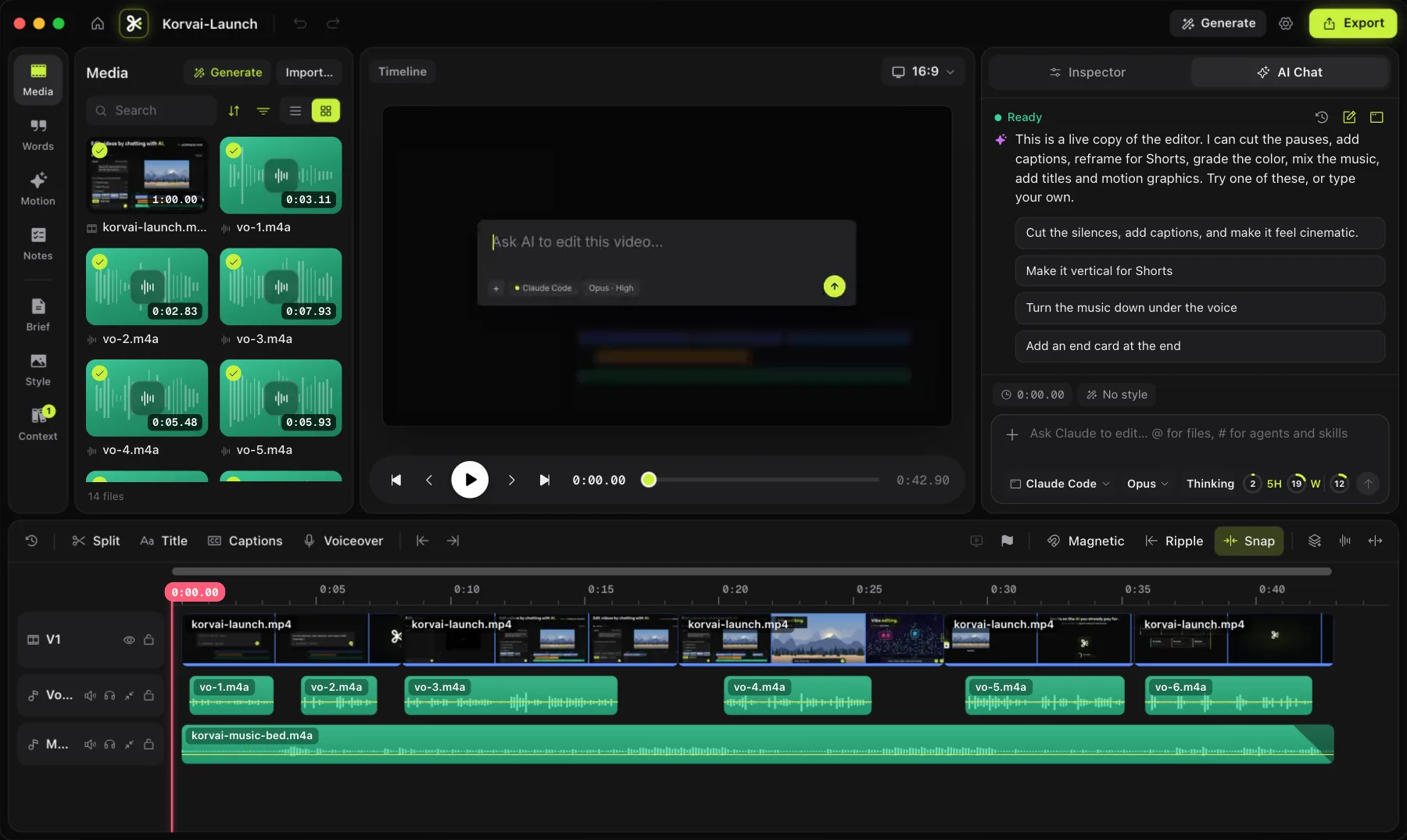
What do you need to edit video with AI on a Mac?
You need three things: a Mac that can run a modern native app, an AI video editor built for that workflow, and an AI coding tool you are willing to sign in to. KorvAI, for example, is built natively for Apple silicon Macs on macOS 15 or later, and it runs the AI chat through a coding agent you install yourself, such as Claude Code, Codex CLI, Gemini CLI or Qwen Code.
That last part matters. Most "AI editors" bundle their own AI subscription and meter your usage against it. An editor that instead plugs into a coding agent you already pay for means there is no second AI bill, and the company making the editor never resells your AI usage to you at a markup.
How does AI video editing actually work?
The AI reads your transcript, calls real editing tools, and writes its changes straight onto the same timeline you can edit by hand, so nothing it does is hidden from you.
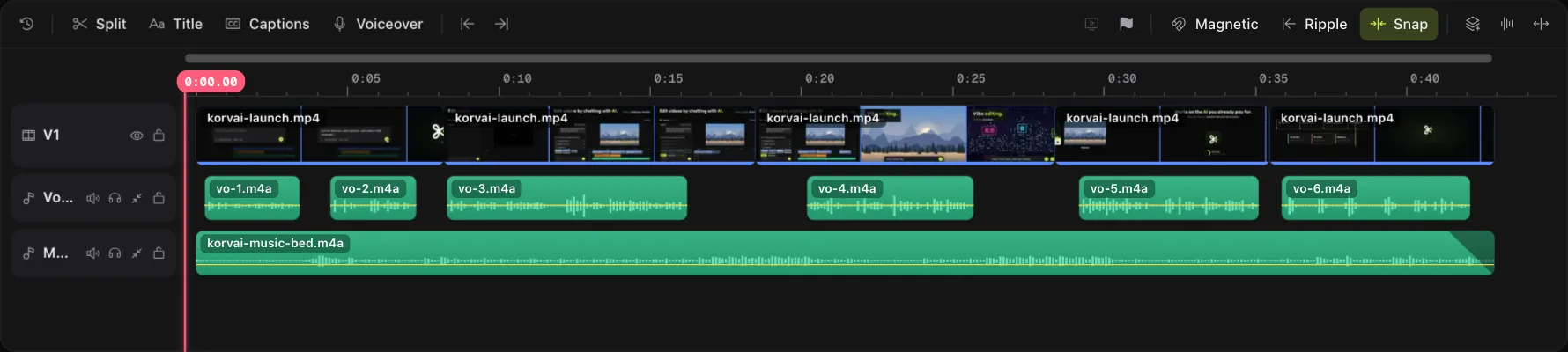
Under the chat window, a real multitrack timeline sits there the whole time, the same one you could edit with a mouse. When you type a request, the AI does not generate a new video from scratch. It reads your transcript, calls editing tools such as cutting silence, moving a clip, reframing a shot or adding captions, and watches its own output by checking frames as it goes. The result lands as ordinary clips, markers and keyframes on the timeline, not as a black box.
That distinction is what makes the workflow usable for real work. Because the AI's actions are just timeline edits, you can see exactly what changed, select any clip it touched, and keep editing by hand from wherever it left off.
How do you edit a video with AI, step by step?
Five steps take you from raw footage to an exported video: install, import, prompt, fix by hand, then check and export.
-
Install the editor and connect your AI tool
Install the AI video editor, then install and sign in to one supported AI coding tool. You use your own plan or API key; the editor never needs its own copy of your AI credentials.
-
Import footage and pick a look
Drop in your clips, photos and audio. Choose a starting look from a preset list, or show the AI what you mean with reference images, a GIF or a link so later edits follow that style.
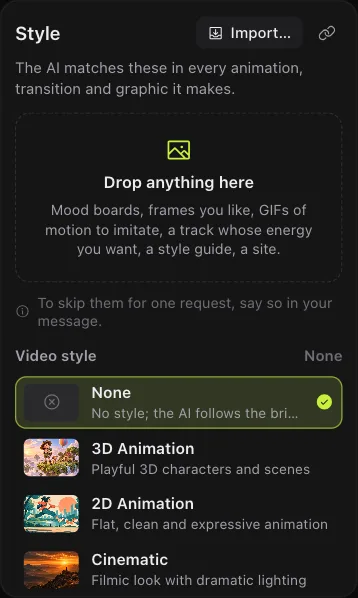
Pick a starting look from the Style panel before you prompt the AI. -
Say what you want in plain language
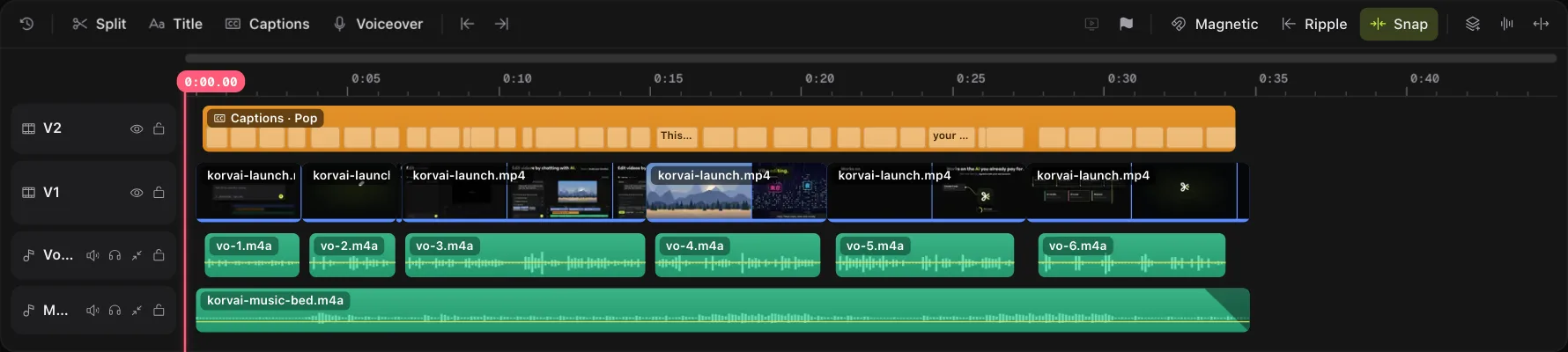
Ask for a first cut, for the pauses and filler words gone, for a vertical version for Shorts, or for captions in a specific style. The AI edits the real timeline and reads its own frames to check faces stay in frame and captions do not cover anything important.
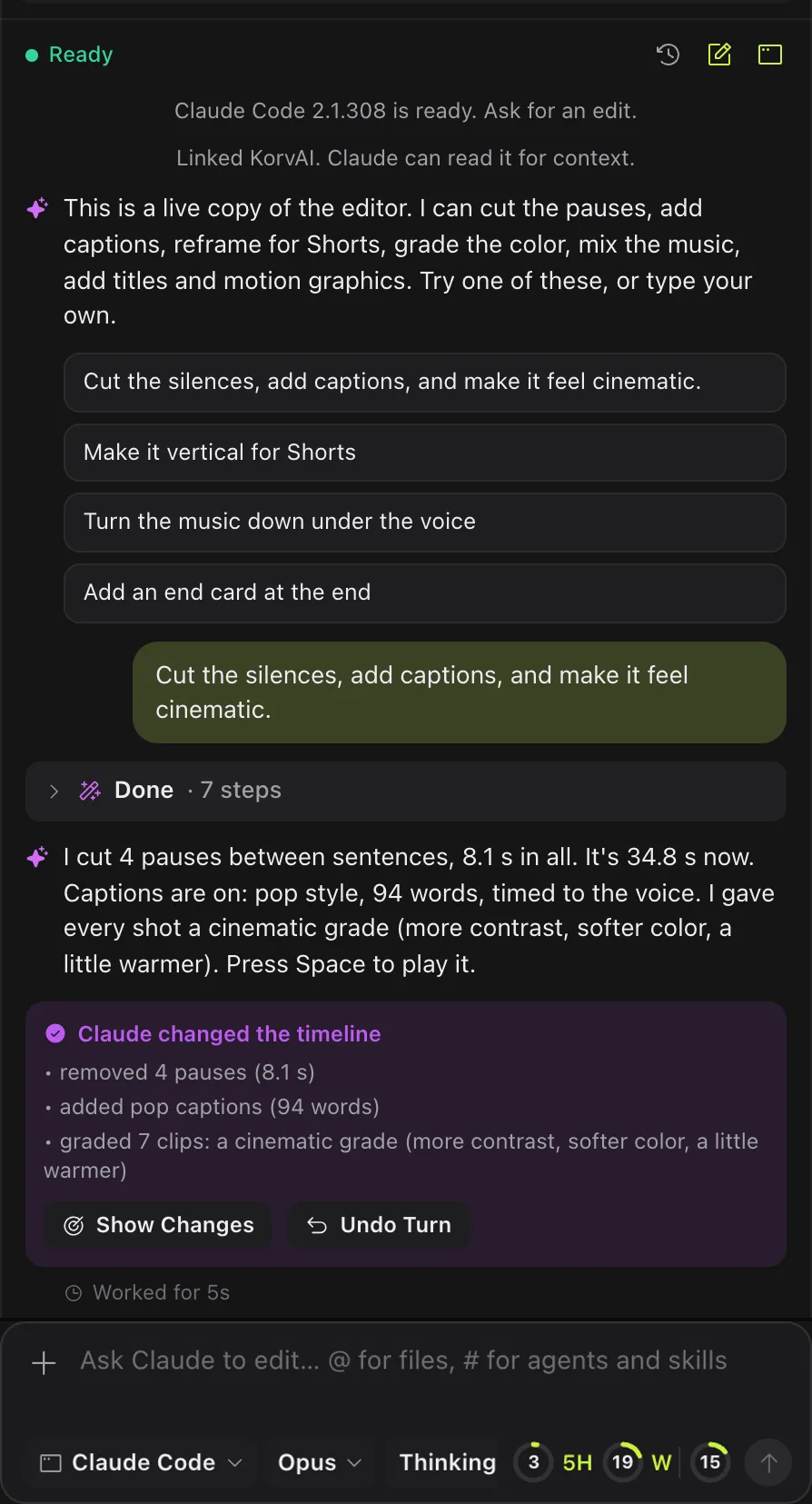
One prompt, one turn: the chat panel shows every step the AI ran and offers Undo Turn. -
Fix it by hand
Play the result back. Trim a clip, move a title, or nudge a cut the usual way. If an entire AI turn missed the mark, undo that whole turn in one click rather than hunting for every change it made.
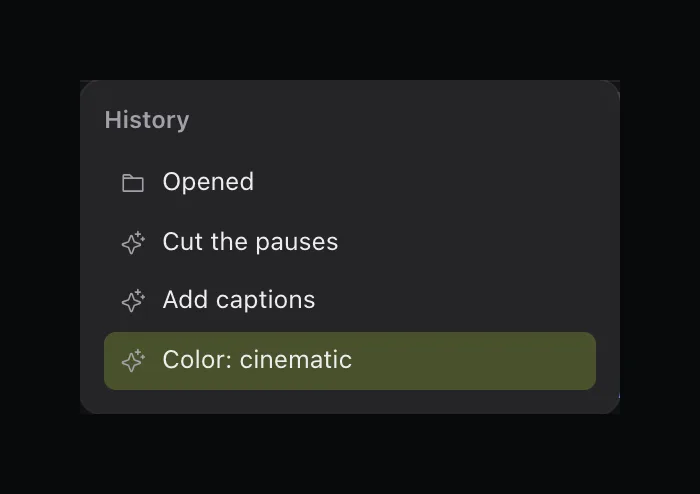
The History popover lists each AI turn and the edits inside it, so you know exactly what to undo. -
Check it and export
Run a pre-export check for black or flash frames, caption sync and loudness. Export in the codec and aspect ratio you need, or publish straight out if the editor supports it.
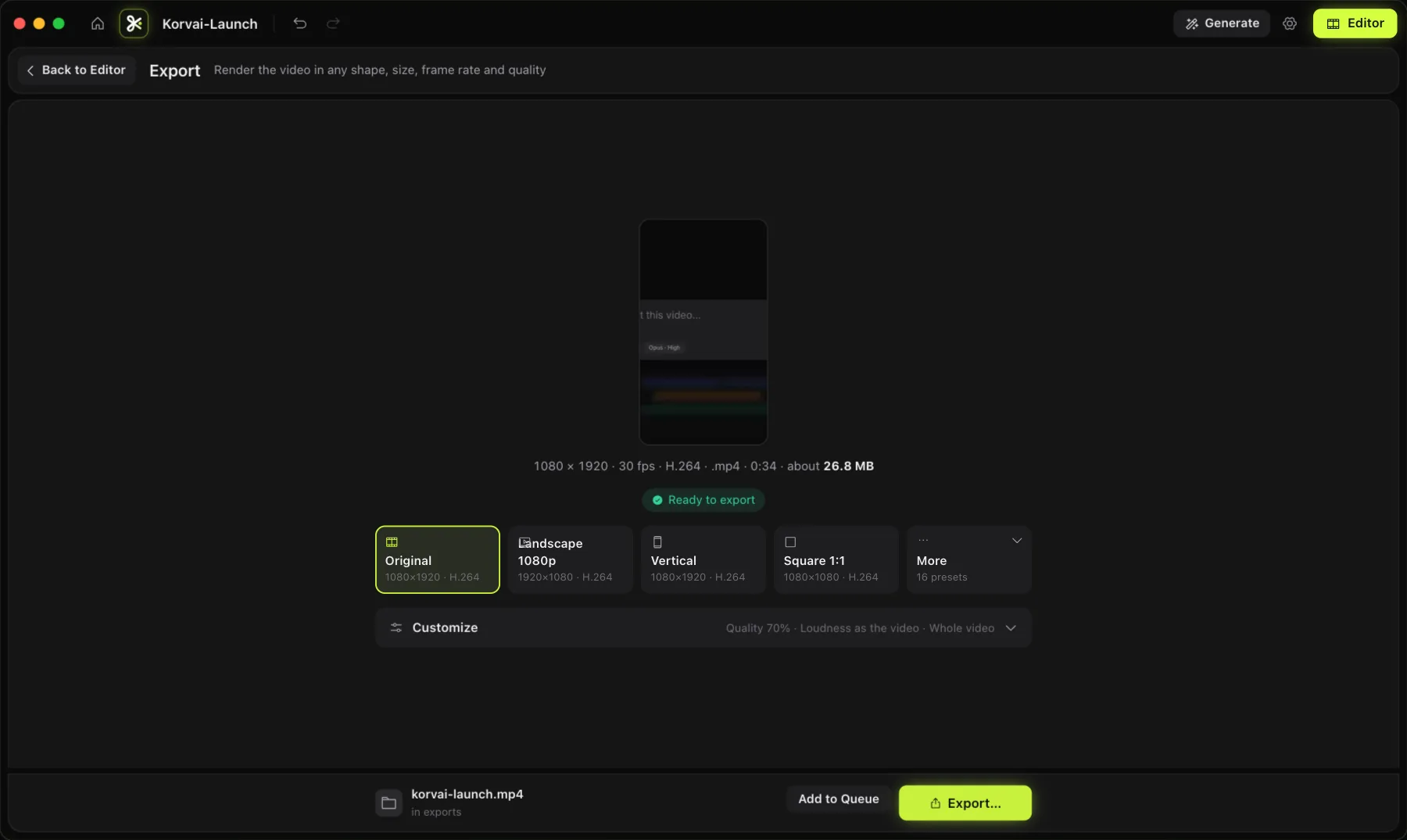
Export page: pick the codec, resolution and loudness target, then render or publish.
Chat editing versus hand editing: when should you use which?
Use chat for changes that repeat across a whole video, and use your hands for last-mile precision on a single clip.
AI chat and manual tools are not competing workflows, they are two ways to touch the same timeline. Use whichever is faster for the task in front of you.
| Task | Faster by chat | Faster by hand |
|---|---|---|
| Cutting silences and filler words across a long interview | Yes | |
| Reframing 16:9 footage to 9:16 for Shorts | Yes | |
| Adding word-by-word captions in a chosen style | Yes | |
| Nudging one clip's in-point by a few frames | Yes | |
| Fine keyframe timing on a single title | Yes | |
| Picking the exact best take among several options | Yes |
A good rule: describe the broad shape of the edit to the AI, then do the last-mile polish yourself. Chatting through every frame-level adjustment wastes turns; clicking through every silence cut in a 40-minute interview wastes your afternoon.
What should you actually ask the AI for?
Describe the outcome you want, such as a vertical Shorts cut with captions, rather than naming an editing technique.
The best prompts describe an outcome, not a technique. Instead of naming a tool, say what the finished clip should feel like or do. A few examples that map cleanly onto real editing tasks:
- "Cut the pauses and filler words, then move the strongest answer to the front."
- "Make a 45-second vertical cut of this interview with captions, keep faces in frame."
- "Add an end card with my handle at the end and duck the music under my voice."
- "Match the cinematic look from the first clip across the rest of this video."
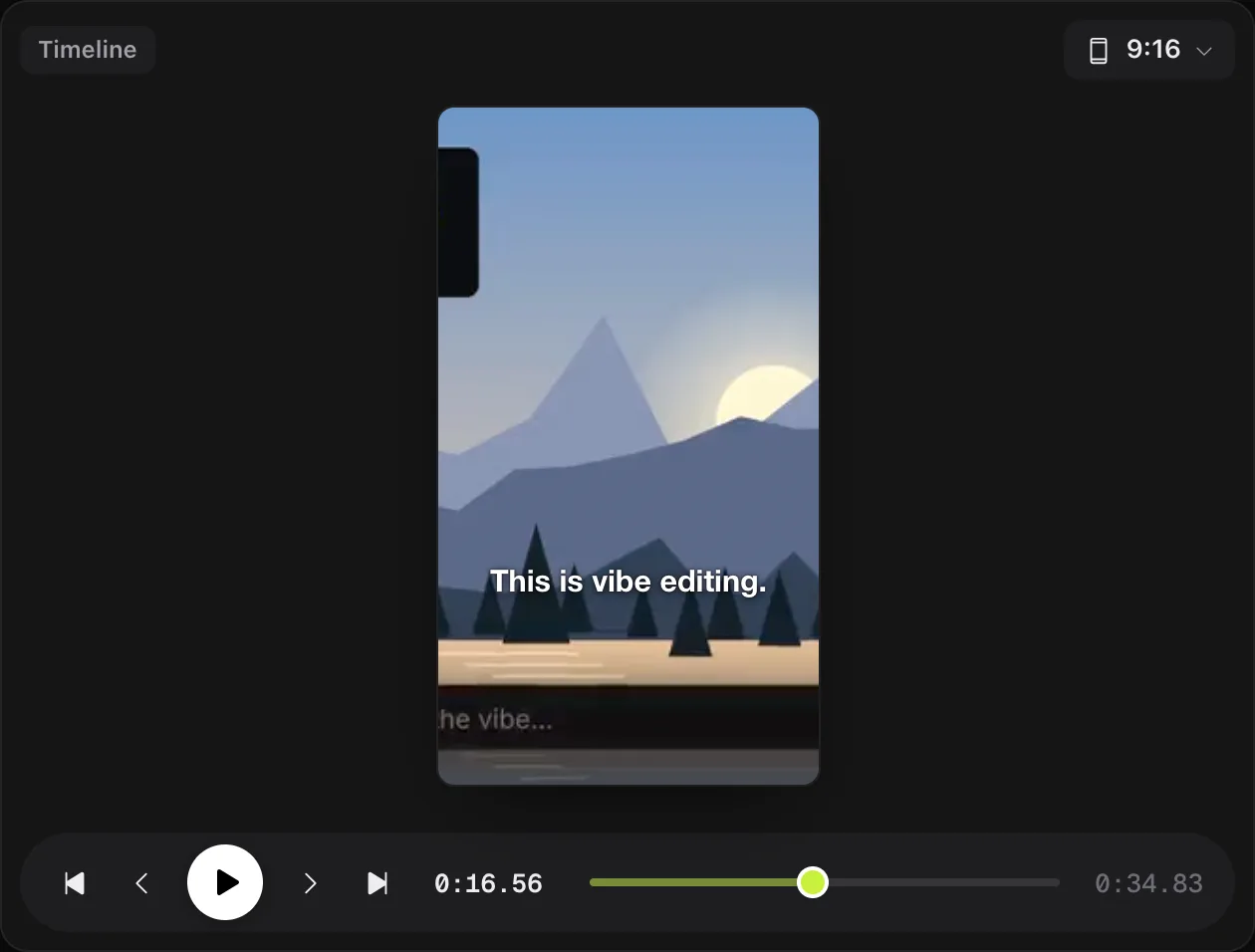
Vague prompts like "make it better" force the AI to guess at your taste, which usually means a few wasted turns. Specific, outcome-shaped prompts get closer to a usable cut on the first try, and you can always refine from there with a follow-up request instead of starting over. Reframing to a vertical or square shape is a good example: ask once, and the AI keeps faces in frame across the whole crop.
What mistakes should you avoid when editing video with AI?
The most common mistakes are stacking too many asks in one prompt and skipping the pre-export check.
- Asking for everything in one prompt. A request like "cut the pauses, reframe to vertical, add captions and make it cinematic" is fine, but if the result is off, you will not know which part to redo. Break big asks into a couple of turns when you are still learning what the tool does well.
- Skipping the pre-export check. Caption sync, loudness and stray black frames are easy to miss on a quick playback. Run the check before you export, not after you have already shared the file.
- Not giving it a style reference. Picking a look or dropping in a reference image upfront saves far more time than correcting the tone after a first pass.
- Forgetting you can undo a whole turn. If an AI edit is mostly right but one part is wrong, it is often faster to undo the whole turn and re-prompt more precisely than to manually unpick it.
Does your footage leave your Mac when you edit with AI?
With KorvAI, no. Your project stays a folder on disk and only chat text and small frame grids are sent to your chosen AI provider.
Projects are plain folders on disk, and transcription, captions, voice cleanup, reframing, color, beat detection and rendering all run on your Mac. The only things that leave your machine are what the AI chat needs to do its job: your messages, the transcript text it reads, and small frame grids it checks, sent to the AI provider you chose under your own agreement with them. Any service you connect yourself, such as stock footage search, is contacted directly from your Mac with your own keys, which are kept in your macOS Keychain.
- No second AI bill. A good AI video editor runs the AI coding tool you already pay for instead of selling you its own AI credits.
- One real timeline. The AI and your mouse should edit the same multitrack timeline, not two different things you have to reconcile.
- Undo at the turn level. Treat each AI request as one undoable step, not dozens of tiny edits to track by hand.
- Chat for shape, hands for polish. Use prompts for broad changes across a whole video, then trim the details yourself.
- Check before you export. A pre-export pass catches sync and loudness issues a quick playback misses.
Try it on your own footage
Every feature is in the 7-day free trial, no card needed. Or buy a lifetime license once for $50: no subscription, no hidden costs.
FAQ
Do I need a separate AI subscription to edit video with AI on a Mac?
If you use KorvAI, no. It runs the AI coding tool you already pay for, such as Claude Code, Codex CLI, Gemini CLI or Qwen Code, on your own plan or keys. There is no extra AI bill and no credits to buy.
Does AI video editing on a Mac work offline?
Hand editing, transcripts, captions and export run on your Mac and work offline once the speech model is downloaded. The AI chat step needs a connection to your AI provider, and stock footage search needs the internet too.
Does the AI edit on a real timeline I can still touch?
Yes, with KorvAI the AI edits the same multitrack timeline you can edit by hand. You can trim, move or undo anything it did, and every AI turn is a single step you can roll back in one click.
Will my footage leave my Mac when I edit with AI?
Your project stays a folder on your Mac. Transcription, captions, voice cleanup, reframing, color and rendering all run locally. Only your chat messages, the transcript text the AI reads and small frame grids it checks are sent to your chosen AI provider.
Can AI editing make a vertical cut for Shorts and Reels from one video?
Yes. Ask the AI to reframe to 9:16 or 1:1 and it keeps faces in frame as it crops, then you can add captions and export straight to the format you need.
What Mac do I need to edit video with AI?
KorvAI is built natively for Apple silicon Macs on macOS 15 or later. You also need one supported AI coding tool installed and signed in with your own account.